Enquiry Manager is the admission front desk inside Edutron School ERP. The screen title is Enquiry and Admission Management. Staff open it after they sign in, when a parent asks about a seat and the child is not yet a student.
The page has two tabs. Enquiry Manager keeps the family, the children they are asking about, the follow-up date, and the status. Admission Form Sale records the paid admission form: form number, seeking class, amount, and receipt.
This public page describes that screen. It does not show a school's live enquiries. An admitted child moves on to Student Manager. The enquiry record is the step before that.
How this workflow moves
The front office usually searches yesterday's follow-ups first, then either updates an existing enquiry or starts a new one. Form sale is the separate tab used when the parent pays for the form.
-
Sign in
A staff member signs in to the school admin app and opens Enquiry and Admission Management. The list stays behind that login.
-
Enquiry Manager
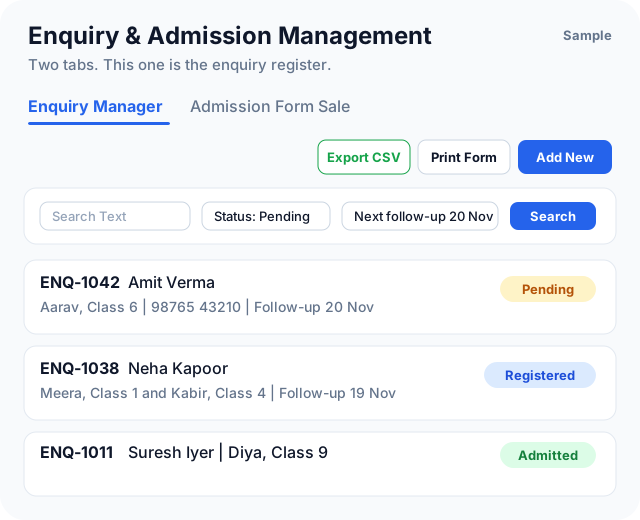
The first tab is the enquiry register. The office can export the list to CSV, print a blank form, or add a new enquiry.
-
Search the list
Search text, status, and an optional next follow-up date narrow the register. Status can be All, Pending, Admitted, Registered, or Closed. Clear resets the filters.
-
Add a new enquiry
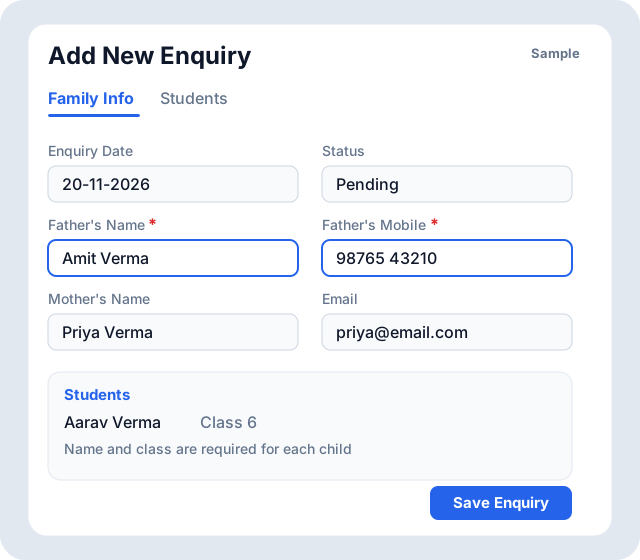
Add New Enquiry opens a form with two tabs. Father's name and father's mobile are required. The status starts as Pending.
-
Family info
Enquiry date, status, father's and mother's name and mobile, a contact mobile, email, two address lines, and remarks.
-
Students
Each child on the enquiry needs a name and class. The office can also store the previous school, a test, and prospectus or admission form numbers.
-
-
Follow up
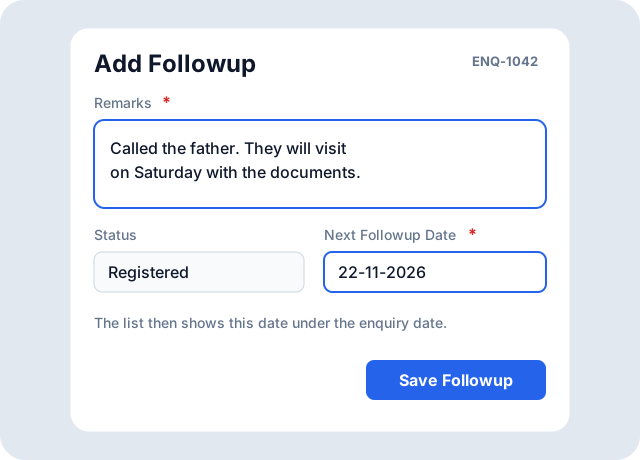
Add Followup asks for remarks, a status, and the next follow-up date. Remarks and the next date are required. The list then shows the new follow-up under the enquiry date.
-
Print or export
Print Form uses the school's print template. If the enquiry has more than one child, the office picks one student or prints all. Export CSV downloads the current list.
-
-
Admission Form Sale
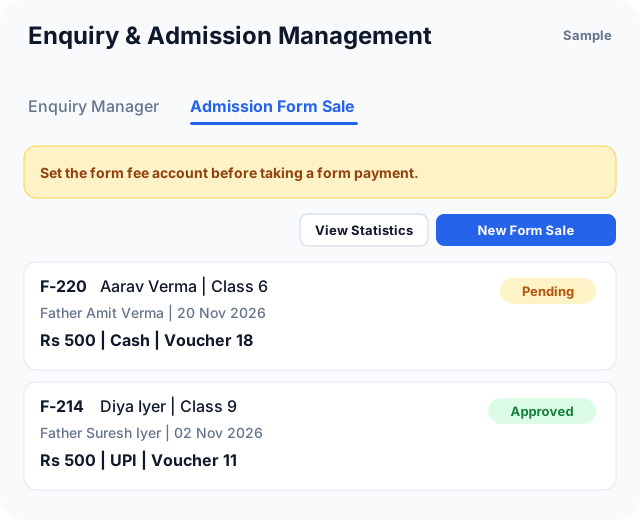
The second tab sells the admission form and records the payment. A form fee account must be configured before the office can take that payment.
-
New form sale
The sale stores form number, form date, student name, parents, contact, seeking class, and the amount with its mode of payment and voucher number.
-
Receipt and status
Each row can be edited, printed as a receipt, or removed. Status is Pending, Approved, Rejected, or Admitted. The office can also view statistics and export the sales to CSV.
-
-
The enquiry register
The enquiry list shows enquiry number, enquiry date, next follow-up, father's name, the children on that enquiry, mobile and email, and status. Each row can be edited, given a follow-up, or printed.
Search looks through the register. Next Followup Date is optional, so the office can open everyone due on a chosen day. Page size can be 10, 20, 50, or 100 rows.
- Columns: enquiry number, date and follow-up, father, students, mobile and email, status
- Filters: search text, status, next follow-up date
- Row actions: edit, add follow-up, print form
Family and children
A new enquiry is not a student admission. It stores the family first. Father's name and father's mobile are required. Mother's name and mobile, a separate contact mobile, email, address, and remarks are available on the Family Info tab.
The Students tab holds every child the parent is asking about. Name and class are required. Previous school, last exam, and an entrance test date, time, and venue can be stored with the same child, along with prospectus number, admission form number, and the fee taken for the prospectus.
- Status on the enquiry: Pending, Registered, Admitted, or Closed
- Required to create: father's name and father's mobile
- A child needs a name and a class
Follow-up and print
Add Followup is how the office records the phone call or the visit. The note, the new status, and the next follow-up date are saved on that enquiry. The list caption shows the follow-up date under the enquiry date, so the desk can see who to call next.
Print Form fills the school's enquiry print template. When one enquiry has several children, the office chooses Select Student to Print, then Print Selected or Print All.
- Follow-up needs remarks and a next follow-up date
- Status can move from Pending to Registered, Admitted, or Closed
- Print uses the school template, for one child or every child on the enquiry
Admission form sale
Admission Form Sale is the receipt side of the same screen. New Form Sale records who bought the form, which class they want, and how they paid. The table shows form number, form date, student, father, contact, seeking class, amount, mode of payment, voucher number, and status.
If the form fee account is not configured, the tab warns the office and payments for forms cannot be taken until an administrator sets that account. View Statistics summarises the sales. Export to CSV downloads them.
- Sale status: Pending, Approved, Rejected, or Admitted
- Search by name, contact, form number, or email, and filter by seeking class
- Actions: edit, print receipt, delete
What this screen is for
Enquiry Manager stops at the admission decision. It does not replace Student Manager, where the school keeps the admitted roll, certificates, and daily records. When a child is admitted, the enquiry status can be set to Admitted and the student record continues in Student Manager.
The dashboard links to Student Manager for the active roll. It does not open this enquiry screen. Staff reach Enquiry Manager from the school transaction menu after they sign in.