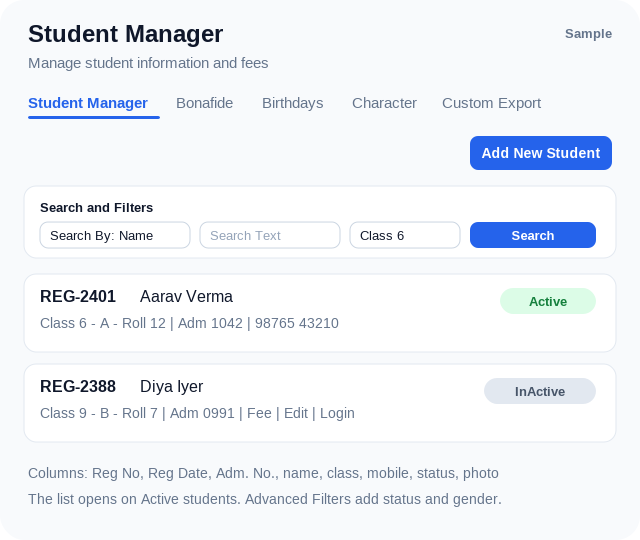
Student Manager is the admitted roll inside Edutron School ERP. Staff open it after they sign in, from the school transaction menu. The screen title is Student Manager, and the list subtitle is Manage student information and fees.
The page has five tabs. Student Manager is the register. Bonafide Certificate and Character Certificate print school certificates for a chosen class. Student Birthdays lists who has a birthday today or in the coming days. Custom Export builds an Excel file from the columns the office chooses.
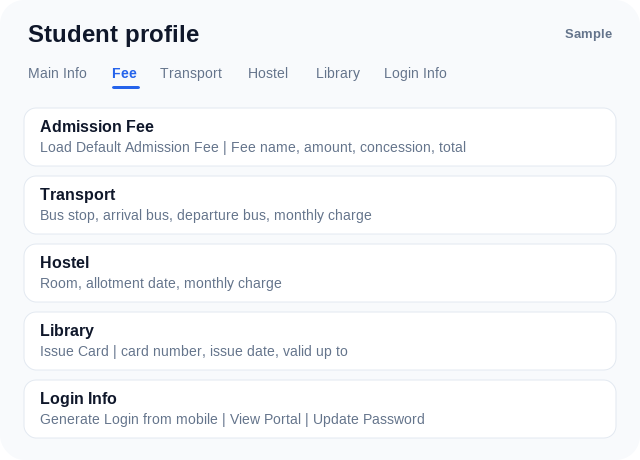
Opening one student reaches the rest of that child's record. Admission Fee is on the Fee tab and also on Fee under the registration number. Transport, Hostel, and Library are their own tabs. Login Info creates the mobile app login from the student's mobile number.
This public page describes that screen. It does not show a school's live students. A child reaches this roll after admission. Enquiry Manager is the earlier step, while the parent is still asking about a seat.
How this workflow moves
The office usually searches the active roll for a class, then either opens one student or moves to certificates, birthdays, or export.
-
Sign in
A staff member signs in to the school admin app and opens Student Manager. The roll stays behind that login.
-
Student Manager
The first tab is the student register. It opens on Active students. More Actions and Add New Student sit above the search.
-
Search the roll
Search By can be smart search, admission number, registration number, roll number, student name, father name, mobile, phone, email, pin code, address, or students with no photo. Class, section, and session narrow the same list.
-
Add a new student
Add New Student opens a profile. Main Info needs the admission number, admission date, registration number, class, section, session, roll number, student name, date of birth, and mobile.
-
Open a row
Fee opens Admission Fee. Edit opens the profile. Transport, Hostel, Library, and Login Info are tabs on that profile. Login Info creates the mobile app login from the student's mobile number.
-
-
Certificates and lists
The other tabs stay on the same page. The office does not leave Student Manager to print a certificate or check a birthday.
-
Bonafide
Pick a class, optionally a section, search by name or registration number, then generate a certificate and type its purpose.
-
Birthdays
The time range can be today, tomorrow, or the next 7, 15, or 30 days. The list can be printed or exported to CSV.
-
Character certificate
Search a class, then generate a new certificate number or print again with the same reference number. History stays on that student.
-
Custom export
Choose the filter fields and the columns, then Generate Export downloads CustomStudentExport.xlsx.
-
-
The student register
The table shows a serial number, registration number, registration date, admission number, student name with the father's name under it, class, section, roll number, and session, then mobile, status, and photo.
Search and Filters stay open. Advanced Filters add status, gender, whether the student has a photo, a date-of-birth range, and sort order. Clear Filters returns the list to Active students. The default status is Active.
- Search by name, numbers, mobile, email, address, or missing photo
- Narrow by class, section, and session
- Status filter: Active, InActive, Expelled Out, School Leaving, Suspended, Transfer Out
Adding a student
Add New Student opens a separate profile. The tabs are Main Info, Parental Info, Previous School, Photo, Fee, Transport, Hostel, Library, and Login Info. A new record is saved with Save Student. An existing record updates Main Info, and the office can send an admission message after the father's name is saved on Parental Info.
Main Info will not save until the required fields are filled. Those are admission number, admission date, registration number, class, section, session, roll number, student name, date of birth, and mobile. Gender on the student form is Male or Female. The list filter also has Other.
- Required on Main Info: numbers, class placement, name, date of birth, and mobile
- Parents, the previous school, and the photo sit on their own tabs
- Edit on a row opens the same profile
Admission fee, transport, hostel, library, and app login
Admission Fee is the Fee tab on the student profile. The same dialog opens from Fee under the registration number on the register. Load Default Admission Fee fills the school's default fee heads. Each line has a fee name, an amount, a concession, and a total. The student has to be saved before those fees can be edited.
Transport stores the bus stop, the start date, the arrival bus, the departure bus, and the monthly charge. Hostel stores the room, the allotment date, the monthly charge, and remarks. Library issues one card: card number, issue date, valid-up-to date, and charge.
Login Info is the student and parent mobile app login. Generate Login uses the mobile number saved on the student. View Portal opens that app for the same mobile. Update Password changes the app password. Without a mobile number, the office cannot generate the login.
- Admission Fee from the register row or the Fee tab
- Transport: bus stop, both buses, and the monthly charge
- Hostel: room, allotment date, and the monthly charge
- Library: Issue Card
- App login: Generate Login, View Portal, Update Password
Status, photo, and class tools
The status chip on a row opens a status change. The choices are Active, InActive, Expelled Out, School Leaving, Suspended, and Transfer Out. A signed-in user who selects several rows can update those statuses together from More Actions.
The photo on the row accepts JPG or JPEG. More Actions also imports students, uploads photos in bulk, exports the current list, opens Custom Export, shows last year's students, manages roll numbers, moves students between sections, and generates a parent update form.
- Fee, Edit, and Login Info sit under the registration number
- A missing photo can be found with Search By set to No Photo
- Roll numbers and sections are changed from More Actions, not by retyping the whole roll
Certificates, birthdays, and export
Bonafide Certificate asks for a class. Section and a name or registration search are optional. Generate opens the certificate, the office types a purpose, and the preview shows the student, reference number, and class. Past certificates stay in history.
Student Birthdays is the same list the dashboard can open. Time range is Today, Tomorrow, Next 7 days, Next 15 days, or Next 30 days, with class and section filters. The office can print the list or export it to CSV.
Character Certificate also starts from a class. Generate New Certificate No creates a fresh reference. Print Duplicate uses the reference already issued. Custom Export lets the office tick the filter fields and then pick, order, and remove the columns before the Excel file downloads.
- Bonafide needs a class and a purpose on the certificate
- Birthdays can be today or up to the next 30 days
- Custom Export downloads CustomStudentExport.xlsx
What this screen is for
Student Manager is the roll after a child is admitted. It is not Enquiry Manager, which stores the parent visit, the follow-up, and the admission form sale before the child has a registration number.
The dashboard counts active students and can open this screen on the birthday tab. The admission fee, the bus, the hostel room, the library card, and the mobile app login are all edited from the same student after sign-in.